Monday, March 3, 2025
React Query, Modern Modal Forms and Reusable Custom Data table
Posted by
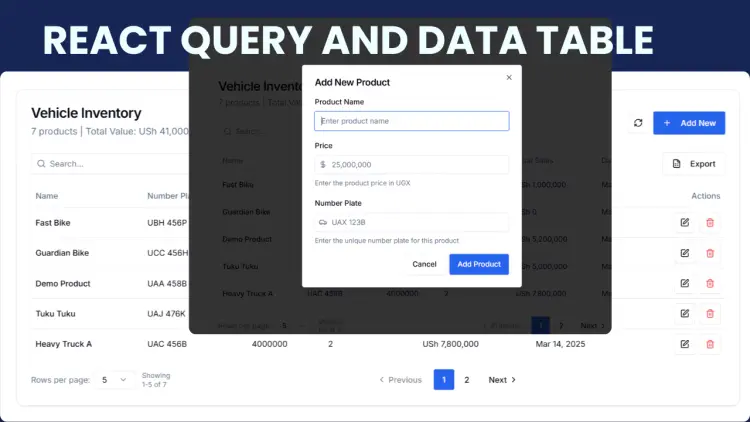
Building a Modern Next.js Application with React Query , Modern Forms and Data table
This documentation will guide you through implementing a complete CRUD (Create, Read, Update, Delete) interface for a Product management module in a Next.js application. We'll use React Query for data fetching, Shadcn UI for components, Prisma ORM for database access, and implement advanced features like data tables with pagination, filtering, search, and Excel export.
Part 1: Project Setup
- Let's start by setting up a Next.js project with all the necessary dependencies.
Creating a New Next.js Project
- You can use any of your existing Next js Project or you can get your self a full featured next js starter kit
1. Recursive Data Structure
The core of the project is a recursive data structure that represents the file system. Each folder can contain other folders or files, and each file or folder has properties such as id, name, and children (for folders).
Here’s a basic structure for a folder:
const folder = {
  id: "1",
  name: "Documents",
  type: "folder",
  children: [
    { id: "2", name: "Resume.pdf", type: "file" },
    { id: "3", name: "CoverLetter.docx", type: "file" },
  ],
};
2. Components
The project includes several key components to handle different aspects of the file system:
- FileExplorer: Displays the entire file system and handles rendering folders and files.
import React, { useState } from "react";
import Folder from "./Folder";
import File from "./File";

const FileExplorer = () => {
  const [files, setFiles] = useState(initialData); // initialData is your recursive data structure

  const addItem = (parentId, type) => {
    // Logic to add a folder or file
  };

  const renameItem = (id, newName) => {
    // Logic to rename a folder or file
  };

  const deleteItem = (id) => {
    // Logic to delete a folder or file
  };

  return (
    <div>
      {files.map((file) =>
        file.type === "folder" ? (
          <Folder
            key={file.id}
            folder={file}
            onAdd={addItem}
            onRename={renameItem}
            onDelete={deleteItem}
          />
        ) : (
          <File
            key={file.id}
            file={file}
            onRename={renameItem}
            onDelete={deleteItem}
          />
        )
      )}
    </div>
  );
};

export default FileExplorer;
- Folder: Renders folders and handles nested items.
import React from "react";
import FileExplorer from "./FileExplorer";

const Folder = ({ folder, onAdd, onRename, onDelete }) => {
  return (
    <div>
      <h3>{folder.name}</h3>
      <button onClick={() => onAdd(folder.id, "folder")}>Add Folder</button>
      <button onClick={() => onAdd(folder.id, "file")}>Add File</button>
      <button onClick={() => onRename(folder.id, "New Name")}>Rename</button>
      <button onClick={() => onDelete(folder.id)}>Delete</button>
      {folder.children && <FileExplorer files={folder.children} />}
    </div>
  );
};

export default Folder;
- File: Renders individual files with options to rename and delete.
import React from "react";

const File = ({ file, onRename, onDelete }) => {
  return (
    <div>
      <p>{file.name}</p>
      <button onClick={() => onRename(file.id, "New Name")}>Rename</button>
      <button onClick={() => onDelete(file.id)}>Delete</button>
    </div>
  );
};

export default File;
3. Handling State and Actions
State management is handled using React hooks like useState to manage the file system data. Actions such as adding, renaming, and deleting items update the state accordingly.
const [files, setFiles] = useState(initialData);

const addItem = (parentId, type) => {
  // Logic to add a new item to the file system
};

const renameItem = (id, newName) => {
  // Logic to rename an existing item
};

const deleteItem = (id) => {
  // Logic to delete an item
};
Conclusion: Building a Dynamic File System with React
Creating a recursive file system in React is a powerful way to manage hierarchical data and provide a dynamic user experience. By leveraging React's component-based architecture and state management, you can build interactive file systems that handle complex nested structures efficiently.
Check out the full implementation on GitHub and explore how these concepts can be applied to your own projects. Happy coding!
🚀📁